
|
|
|
Go to Start -> Programs -> Accessories -> Dial-Up Networking.
If you do not have "Dial-Up Networking," you can add it.
|
1. Go to Start -> Settings -> Control Panel. 2. Double-click "Add/Remove Programs." 3. On the "Windows Setup" tab, highlight "Communications"...(do not uncheck the box next to "Communications"). 4. Click to select the "Dial-Up Networking" check box, then click OK. 5. On the "Windows Setup" tab, click OK. |
Windows 95 now installs the necessary components to use Dial-Up Networking.
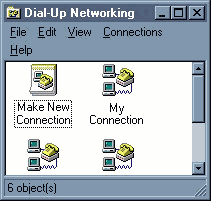
Double-click "Make New Connection"...
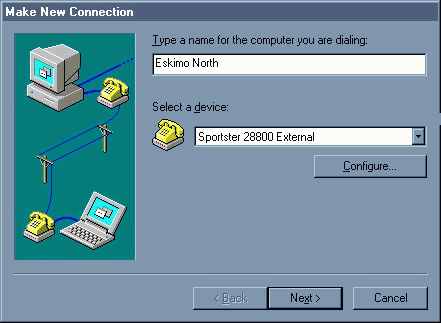
Enter name of the ISP for the top box (ex: Eskimo North). Select your modem from the list, or let Win95 autoselect your modem (if modem is not already set up).
Configure your modem if you need to.
Click "Next"...
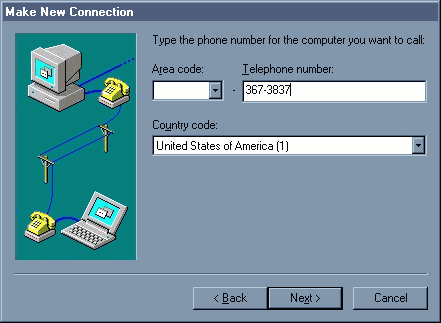
Enter the ISP's telephone access number when prompted (no area code, unless it is a long-distance call.)
Click Next
Click Finish.
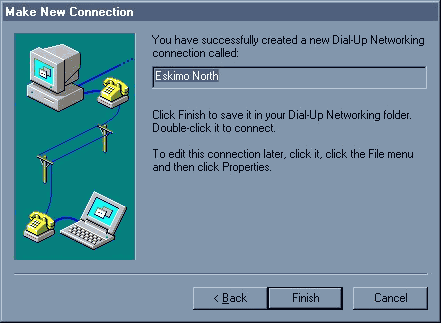
A connect icon for the Eskimo North will appear in the "Dial-Up Networking" folder.
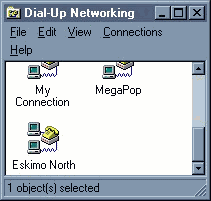
Right-click on the Eskimo North icon and select
"Properties".
Your should see a window like this (with or without
the "Scripting" tab, depending on your release of Win95):
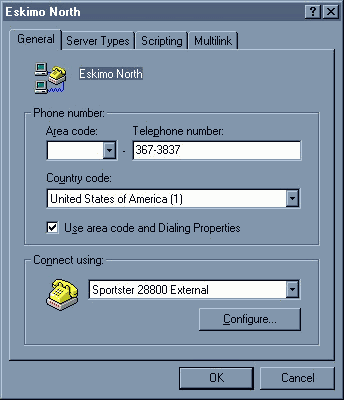
Unless you are dialing into Eskimo North long distance, you'll want to leave the "Area Code" box blank.
Type the Eskimo North Dialup Number you will be using under the
"Telephone number" heading.
NOTE: If you are using
an Eskimo North dial-up number in a different area code than your own,
type the area code in front of the telephone number...NOT in the
"Area Code" box. This is extremely important.
Be sure the modem listed is the correct modem.
Click on the "Server Types" tab...

Be sure that the "Type of Dial-Up Server" is set to "PPP, Windows 95, Windows NT 3.5, Internet."
The ONLY thing item that should be "checked" is "TCP/IP" under "Allowed network protocols."
Click on "TCP/IP Settings"...
Select "Server Assigned IP Address".
Select "Specify name server address".
Enter the following IP addresses:
"Use IP header compression" and "Use default gateway on remote network" should both be selected.
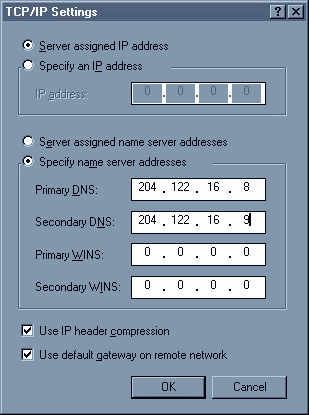
Click "OK"...
If you would like to move your Eskimo North icon onto your desk top, right-click on the icon, drag it onto the desktop, and select"Create shortcut." Then you may close the "Dial-Up Networking" window and proceed to Step 5.
Restart your computer to allow the changes you made to take effect.
To restart, go to Start -> Shutdown -> Restart.
Double-click on your "Eskimo North" icon. You should a window like this:
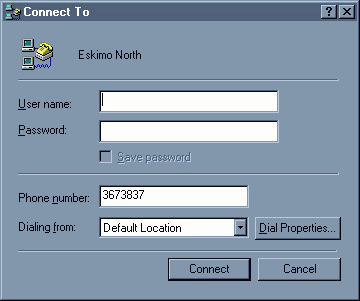
Enter your login name (which should always be in all lowercase) in the
"User name" box.
Enter your password (which is case sensitive) in the "Password" box.
Click on quot;Connectquot; and you're set!